
APPLICATION INSTRUCTION MANUAL
Mobile application of e-banking for natural persons
Installation applications
In order to install and use the mobile banking application, you need Internet access from your mobile phone. If you have not used the Internet on your mobile phone before, contact your mobile operator or connect to a secure Wi-Fi network.
ACTIVATION

After you have agreed on using the mobile banking service, you will receive an activation key by e-mail in a short period of time. The activation key is one-time key and will only be used as the first step to start the application.
SELECT PIN
Upon successful activation, the selection screen will open user PIN. User PIN is a number of 4-10 characters known only to you and it is necessary to remember it. Every time you start the application after selecting a PIN, the application will only ask you to enter the user's PIN. After choosing a PIN, you can start using mobile banking services.
CANCELLATION OF THE PIN
If for some reason you forgot your PIN or you blocked the service by entering the wrong PIN, you need to contact the Bank to reset the PIN or to deliver a new activation key.
APPLICATION
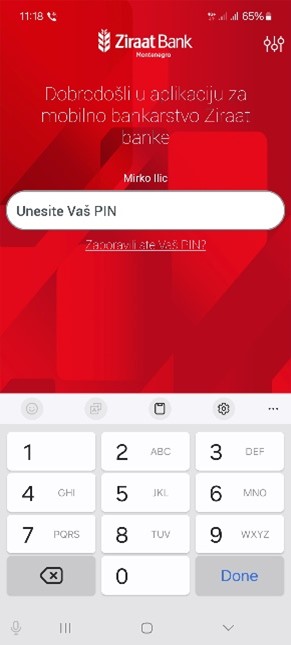
Logging in to application consists of entering PIN that you selected during the application activation process.
If you have forgotten PIN, it is necessary to inform the Bank so that the Bank can cancel the current PIN. You can read more about this under “Resetting a user's PIN”.
If you enter the wrong PIN three times, your mobile banking service will be blocked. In this case, it is necessary to notify the Bank in order to cancel PIN.
After you have entered the correct PIN, you can start using mobile banking services again.
EXCHANGE LIST
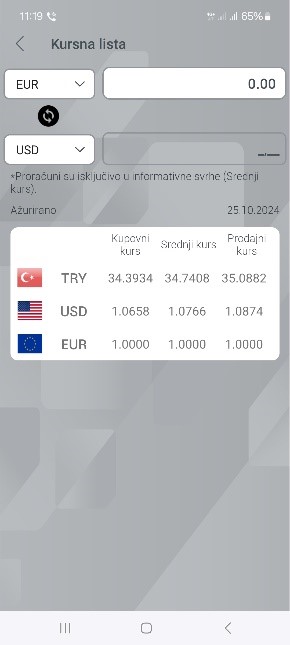
In the exchange rate list, you can see the values of the buying and selling exchange rate according to the domestic currency.
THE NEAREST ZIRAAT
Using this option, users can quickly and easily find the desired branch or ATM. Activating the option opens a map showing your location and the ATMs marked on the map. The tabs at the top of the screen select the display of branches, ATMs or both. A red tab indicates the current selection
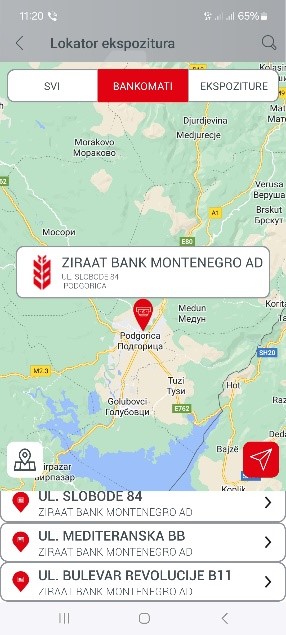
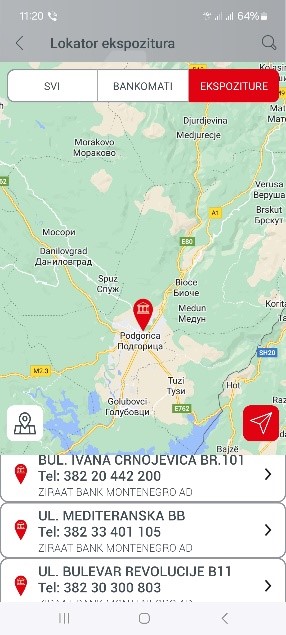
Clicking on a particular branch/ATM opens a window with information about the branch/ATM. Only address information is available for ATMs, while address, contact phone and navigation are available for branch offices.
CALCULATORS
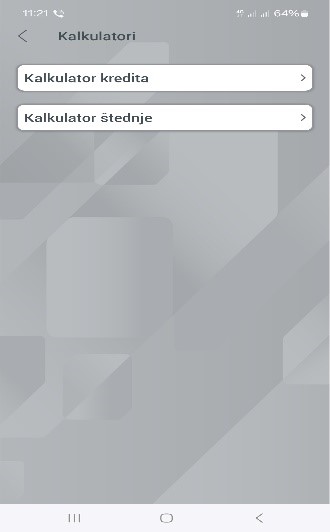
Two calculator options are shown on the form: loan calculator and savings calculator.
Loan calculator
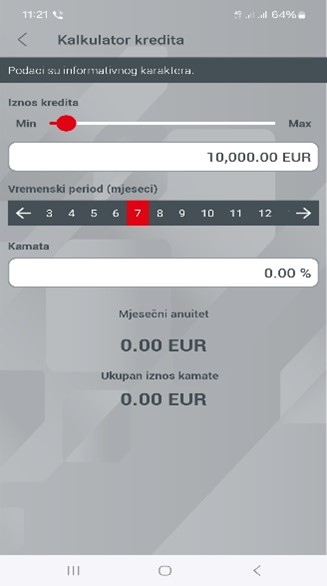
The loan calculator option is used to calculate the installment based on the amount, interest and maturity period using a compound interest account. The option is informative.
All fields are mandatory. After entering all data, the result will be displayed in the lower part of the screen.
Savings calculator
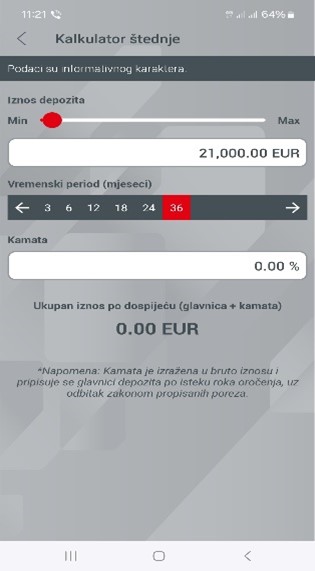
The savings calculator option is used to calculate the amount at the end of the term. The option is informative.
All fields are mandatory. After entering all the data, the amount you will receive at the end of the term will appear.
CALL CENTER
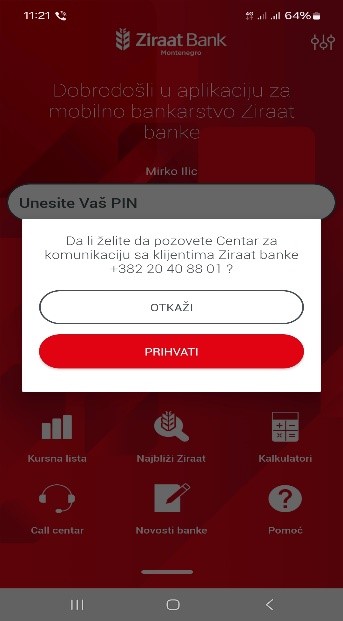
The user has the possibility to contact the Bank by phone (Call Center).
ABOUT THE APPLICATION
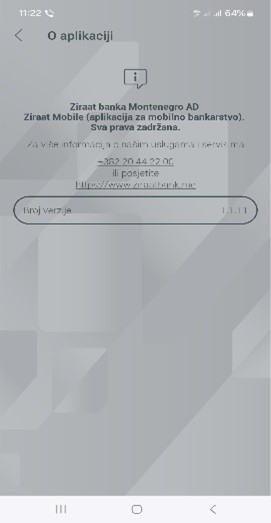
This section displays general information about the application you are currently using.
THE LANGUAGE CHANGE
The language change option changes the language of the application regardless of the language of your mobile device.
By clicking on the relevant line, the language of the application is changed.
MOBILE APPLICATION
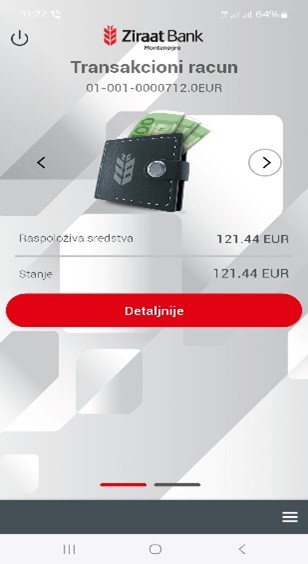
After you have signed in to the application, the total available balance of the transactional account will be displayed. By moving to the right, you can switch to other available accounts, such as foreign exchange, savings and loan accounts.
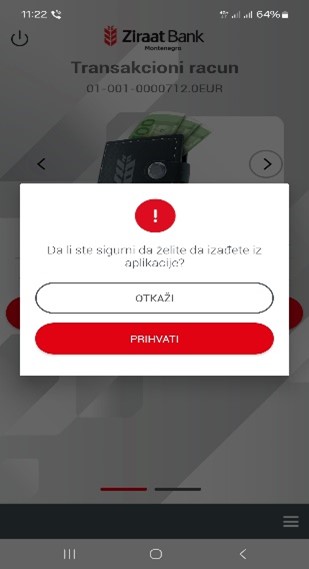
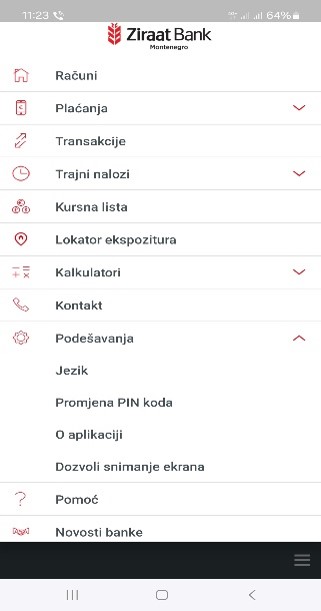
In the lower right corner, there is an icon for entering the Menu (the main functions of the application).
Change of the PIN
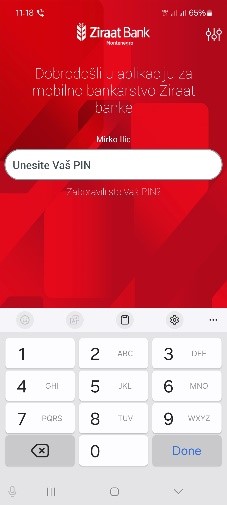
To change the PIN, you need to enter the correct existing PIN. In case of incorrect entry of the existing PIN (after 3 attempts), you will block the mobile banking service.
The steps for changing the PIN are as follows: by entering the correct existing PIN, and by entering a new PIN and confirming it, the PIN is changed. After user changes the PIN, relevant message will appear to the screen to inform the user about successfully completed process of PIN change. If the PIN has been successfully changed, enter your new PIN during the next login.
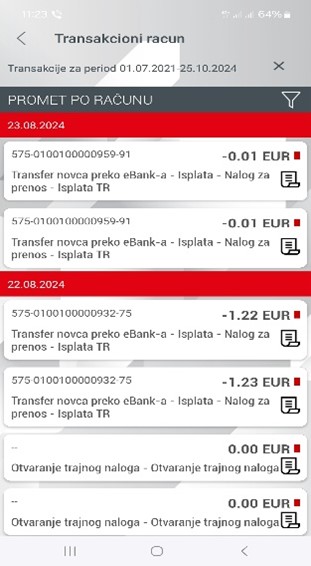
Transactional account
The option includes an overview of the account with data on the account balance and available amount.
With each displayed account, the user can select the "Details" option, which allows to enter details about the account. Within this option, a time range can be set and certain transactions can be filtered.
Savings account
The section displays a list of savings accounts, with information about the name of the account, the amount (balance), and the due date. With each displayed account, user can select the "Details" option, which allows to see the details about the account.
Foreign currency accounts
The section displays a list of savings accounts, with information about the name of the account, the amount (balance) and the due date.
With each displayed account, user can select the "Details" option where the account details can be seen.
which we enter in details o account.
Loan account
In the section, the loan accounts are shown, with information about the name of the account, the amount (balance) and the due date.
With each displayed account, user can select the "Details" option, which allows to see the details about the account.
In this option, user can access to the loan repayment plan.
PAYMENTS
By opening the Payments option, user can choose to make payments between your own accounts, payments within the bank and within the country. The user can review performed orders, review templates (or create new ones), and review recipients (or enter new ones).
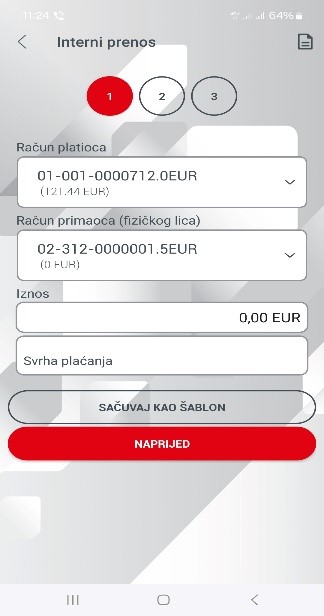
Internal transfer
With an internal transfer, user can transfer funds to accounts within Ziraat Bank. When entering the account number, user will enter only partial number of the account (i.e. 01-002-0000005.5), not the full number of the account.
In the event that the data in the order is incorrect, a corresponding message will be displayed with a description of the error. Fields with incorrect input can be corrected and order verification can be started again by pressing Next.
By pressing Sign, the order is sent for execution and a message about the execution status is displayed.
Payment within the country
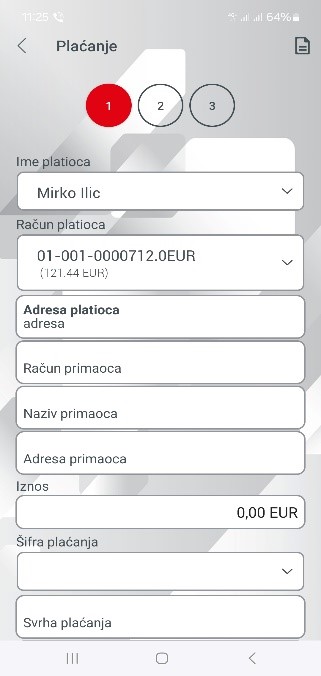
Payment within the country is an option that serves to transfer funds from the transaction account to the accounts of other legal or natural persons within the country, that is, to the accounts of natural and legal persons who have accounts in other banks in Montenegro.
It is necessary to select the principal (invoice), recipient, amount, description, date, and indicate whether it is an urgent order. If you choose the Urgent order option, the order is executed immediately, that is, there is no waiting for the clearing process, and a higher fee is applied for this option compared to a standard payment order.
You can find out about fees via the link:
https://www.ziraatbank.me/lat/fees-and-commissionsIn the event that the data in the order is incorrect, a corresponding message will be displayed with a description of the error. Fields with incorrect input can be corrected and order verification can be started again by pressing Next.
By pressing Sign, the order is sent for execution and a message about the execution status is displayed. The account can be saved as a template.
Instructions for filling in the purpose of payment
In order to ensure the correct and timely execution of your transactions, please enter the purpose of payment as follows:
1. Please be precise and clear:
• For the purpose of payment, please state the exact reason or purpose of payment.
2. Please be sure to include the required information
•- For the purpose of payment, please state the exact reason or purpose of payment.
• If you pay several invoices, please make a specification and specify its number and date for the purpose (eg "By specification No. 1 of 24.12.2024").
• For partial payments, please state that it is a partial amount and what it refers to (eg "Partial payment of invoice no. 123/2024").
2. Please specify the period to which the payment refers: E.g. "Payment of rent for 01/2024."
3. Please be sure to include the required information:
• - If you pay by invoice or contract, please state the number (eg "Invoice No. 123/2024" or "UZZ 1/2024");
• - For partial payments, please state that it is a partial amount and what it refers to (eg "Partial payment of invoice no. 123/2024");
• - Please specify the period to which the payment refers: E.g. "Payment of rent for 01/2024."
4. Transfer of personal assets
•- For internal transfers between your accounts, please enter a purpose such as: "Transfer of personal funds" or "Internal transfer";
- Note: This rule does not apply to payments from the account of a natural person to the account of a legal entity.
5. Please avoid general descriptions
•- Please do not enter purposes like "Payment" or "Transfer". Instead, please clearly state the reason.
Note: If you do not enter the correct and complete purpose of the transaction, processing may be delayed.
Examples of correct and incorrect entries:
• Incorrect: "Payment", "Transfer", "Invoice".
• Correct: "Payment of invoice no. 123/2024",
"According to specification no. 1 of 24.12.2024",
"Partial payment of invoice no. 123/2024",
"Transfer of Personal Assets".
Templates
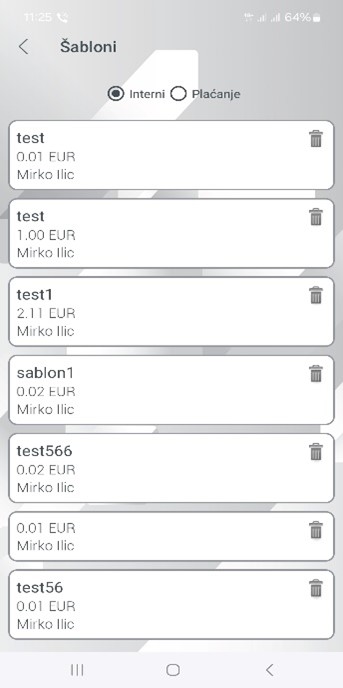
Templates are displayed in the specified option. There are tabs where you can view all templates. There are two types of templates Internal and Payment.
Internal refers to saved templates for orders/payments within the Bank, and Payment refers to saved templates for payments to other banks in Montenegro.
STANDING ORDERS
Within this option, you can open permanent accounts, internal and external, as well as have insight
in all open standing orders.
By opening a permanent account, you can automate the transfer from your account to the recurring level.
The difference between a template and a standing order is that in the templates you save the form of the payment order, while with a standing order you can settle all your obligations with a periodic automated transfer of funds.
It is necessary to enter all the necessary data in order to open a permanent account :
Type of standing order (internal or payment /external ), recipient's account, amount, purpose, dates
beginning and end of validity of the standing order and execution period (daily, monthly and yearly).
CARDS
The form shows options for working with debit cards..
Debit cards
Clicking on a debit card opens a form with card details: owner, type, account, available amount, account balance and reserved amount.
If we click on Details, we will get a list of traffic for the period. We can change the specified period as needed.
If we click on Reserved funds, we will get a list of completed debit card transactions that have not yet been posted to the transaction account.